
Bedrock Switches to GDK for Windows
Note
This change is currently only for the Windows version of Minecraft Bedrock.
Important
Please read this guide to learn back up your worlds and settings before updating the game, as the automatic updates may cause files to be moved to the wrong location, or deleted permanently.
Warning
If Minecraft is already updated automatically, please follow the "Restore Your Data" section below to move your worlds and settings back to the correct location before launching the game, or worlds or addons may not work properly.
If the files aren't moved to the new location, follow the instructions below to backup your data from the old location.
Starting from Minecraft Bedrock version 1.21.120, the game switches from UWP the old Universal Windows Platform (UWP) to the Game Development Kit (GDK) on Windows devices. As a result, players will need to reinstall the game from the Microsoft Store to continue playing newer versions.
Here's what you need to know about Minecraft's GDK update, and how to reinstall the game while preserving your worlds and settings.
Back Up Your Data
Since the GDK Update changes the file location, players will need to back up their worlds and settings before reinstalling, as they are not carried over automatically. Here's how to do it:
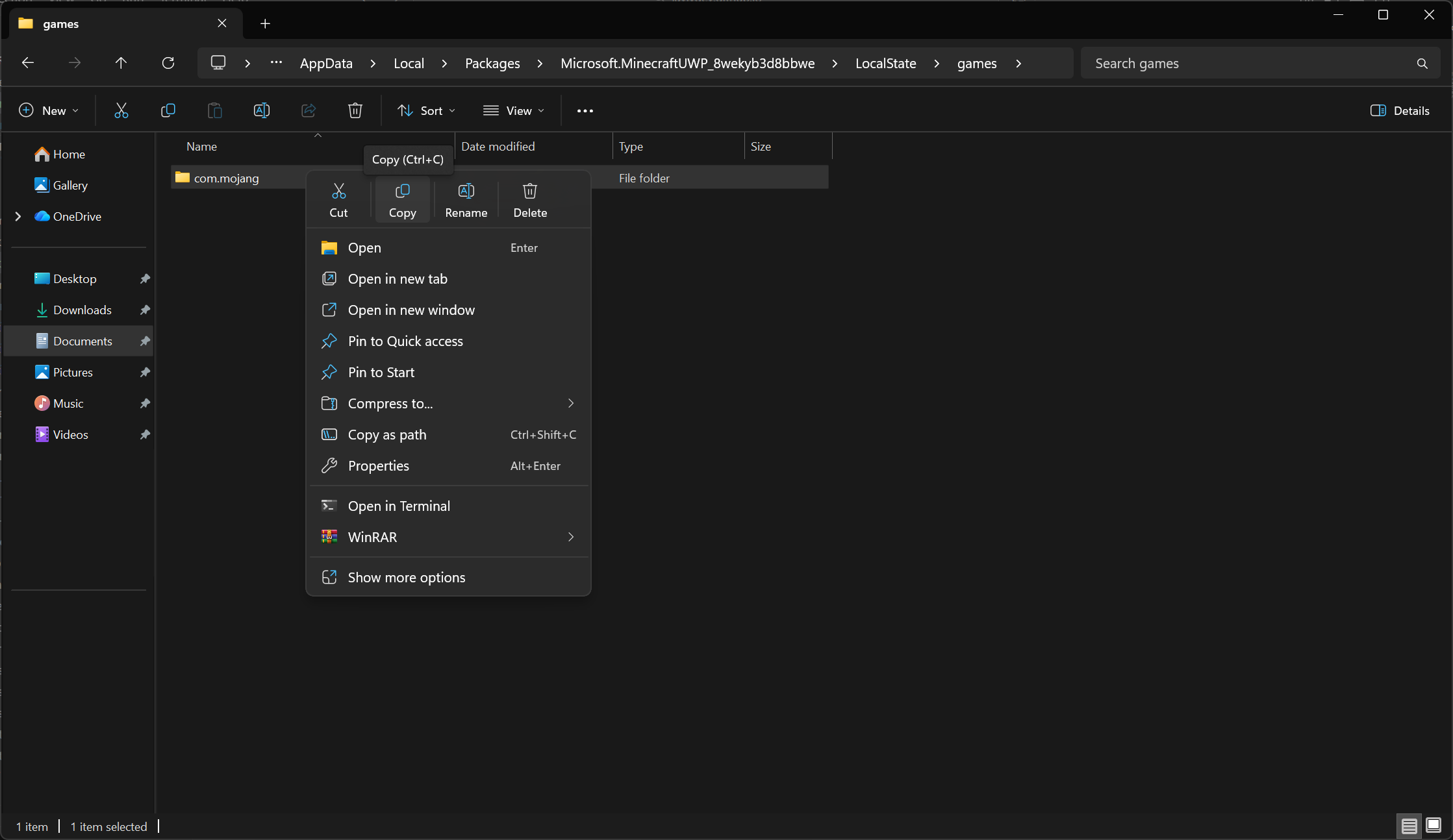
- Open File Explorer and navigate to
%LocalAppData%\Packages\Microsoft.MinecraftUWP_8wekyb3d8bbwe\LocalState\games\com.mojang. - Copy the entire
com.mojangfolder to a safe location, such as your Desktop or an external drive.
Reinstall Minecraft Bedrock
After backing up your data, you can proceed to reinstall Minecraft Bedrock with GDK support. Here's how:
-
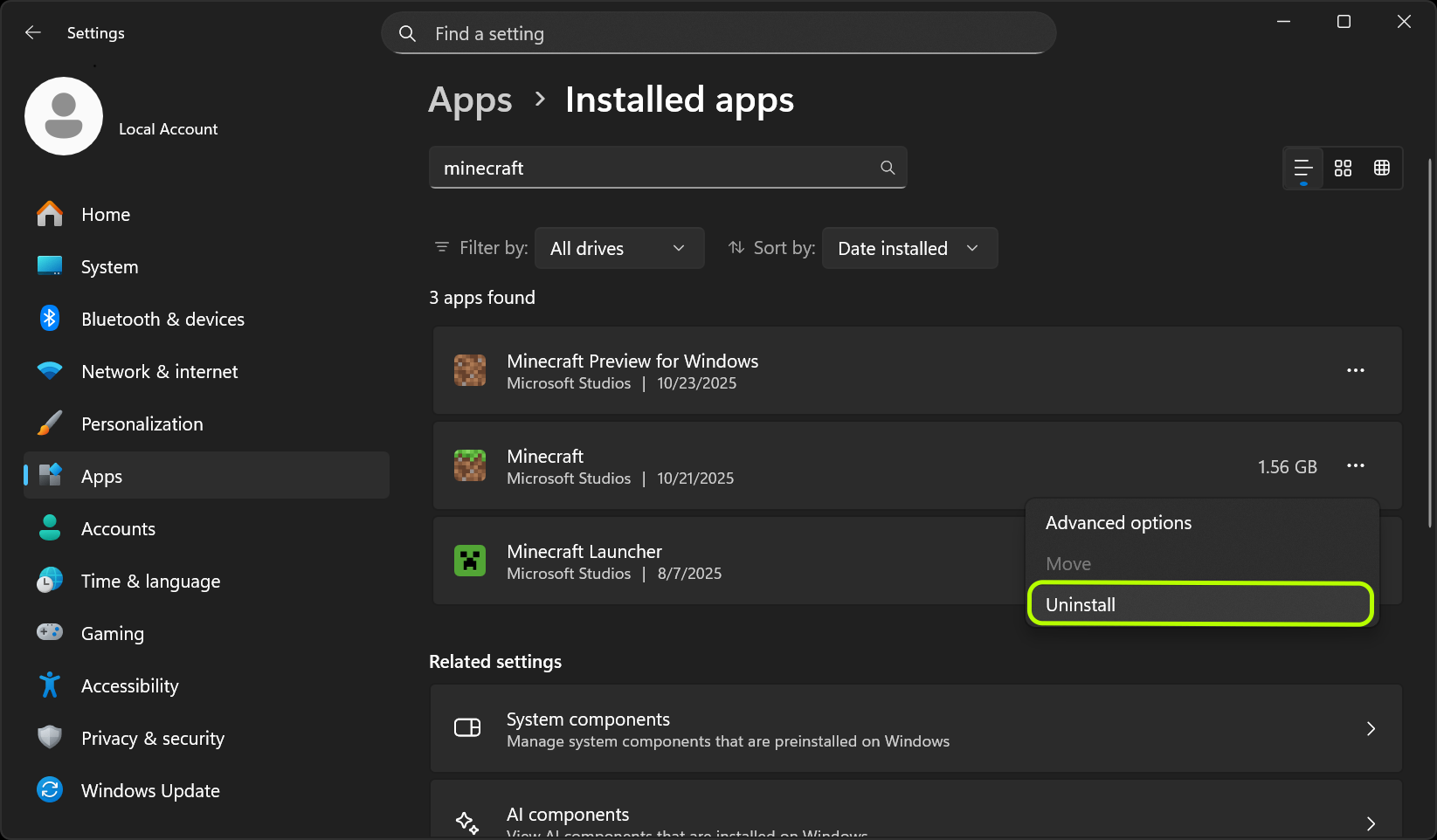
Uninstall the current version of Minecraft Bedrock from your device:
- Open the Start menu and go to Settings > Apps > Installed Apps.
- Find "Minecraft" in the list, click on it, and select "Uninstall".
To reinstall Minecraft Bedrock with GDK support, follow these steps:
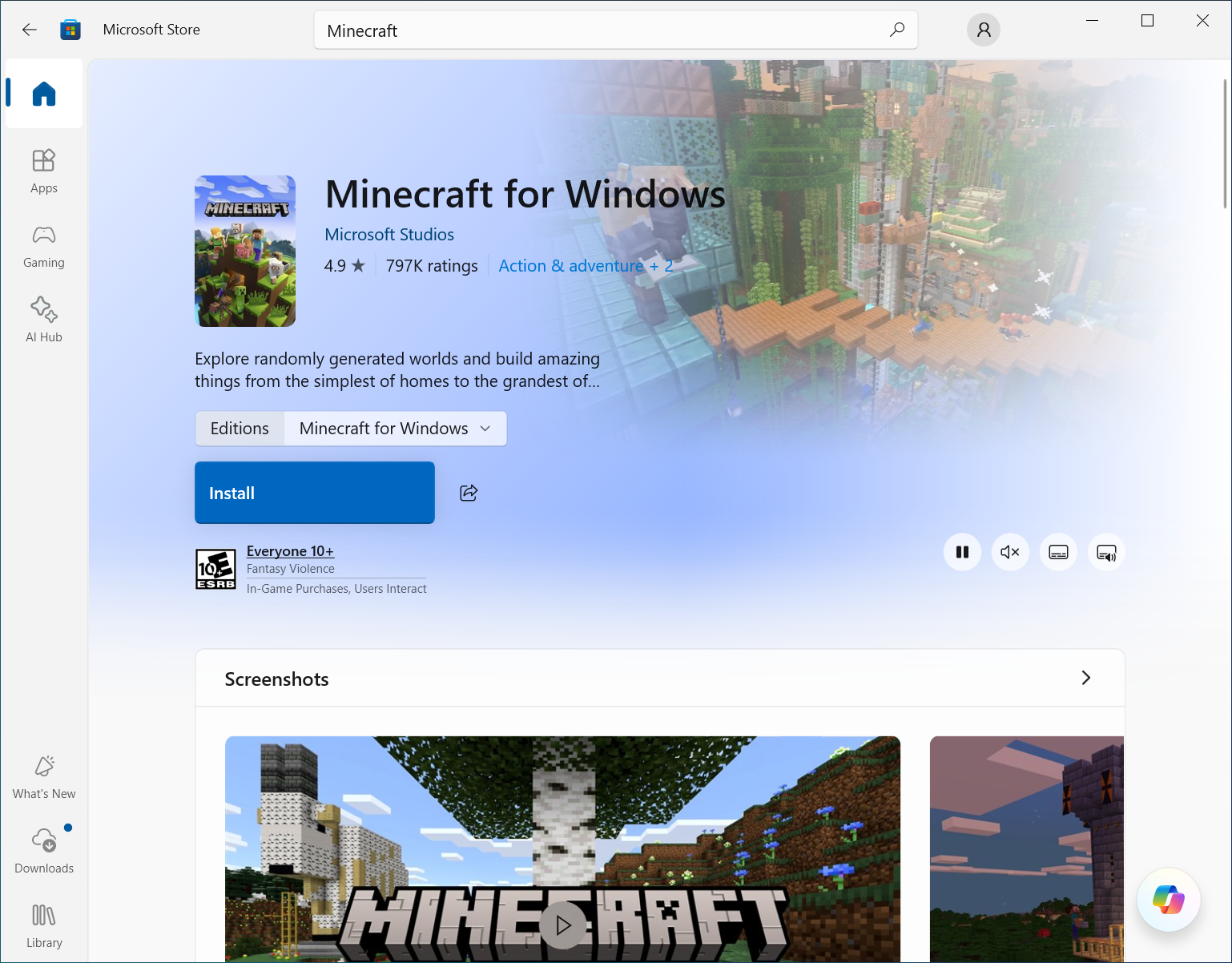
- Open the Microsoft Store app on your Windows device.
- Search for "Minecraft" and select "Minecraft for Windows". The download link is available at the following links, or you can use the Minecraft Launcher to install it.
- Microsoft Store (Online)
- Open Minecraft in Xbox App: msxbox://game/?productId=9NBLGGH2JHXJ
- Open Minecraft in Microsoft Store: ms-windows-store://pdp/?productid=9NBLGGH2JHXJ
- Click the "Install" button to download and install the latest version of the game.
Reinstall via Minecraft Launcher
If you prefer using the Minecraft Launcher, follow these steps:
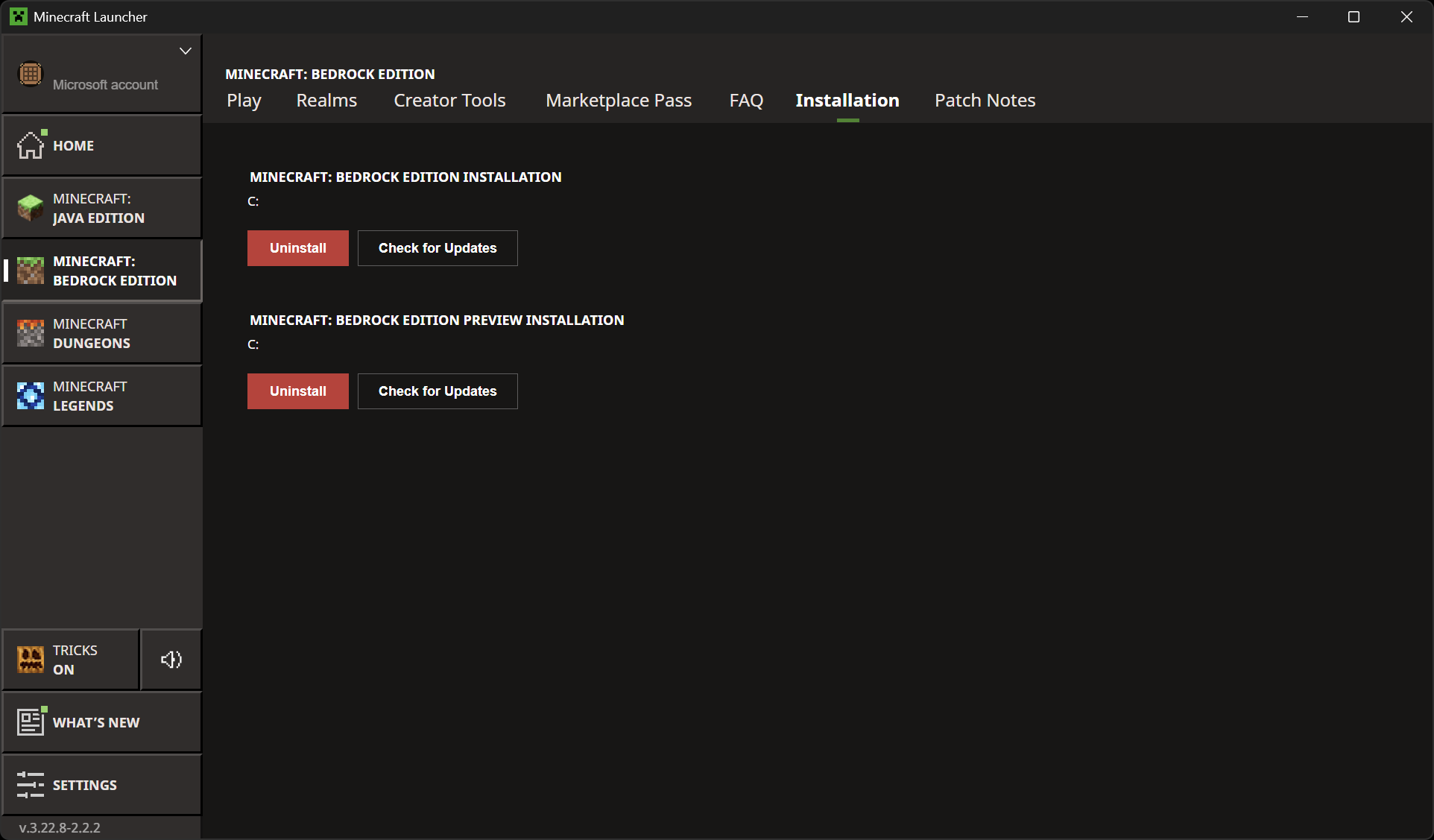
- Open the Minecraft Launcher on your device.
- Ensure you are logged in with your Microsoft account.
- In the launcher, select the "Minecraft: Bedrock Edition" on the left sidebar.
- Click on the "Uninstall" button if available, then click "Install" to download and install the latest version of Minecraft Bedrock with GDK support.
Restore Your Data
After reinstalling Minecraft Bedrock, you will need to restore your worlds and settings from the backup you created earlier. Here's how:
-
Launch Minecraft Bedrock GDK Update to create the necessary folders.
-
Close the game and navigate to the new installation directory:
%AppData%\Minecraft Bedrock\Users\Shared\games\com.mojang. -
Copy the following folders in your backed-up
com.mojangfolder into this new directory, replacing any existing files. This is the new place where addons, resource packs, and behavior packs are stored.behavior_packsresource_packsdevelopment_behavior_packsdevelopment_resource_packsdevelopment_skin_packs
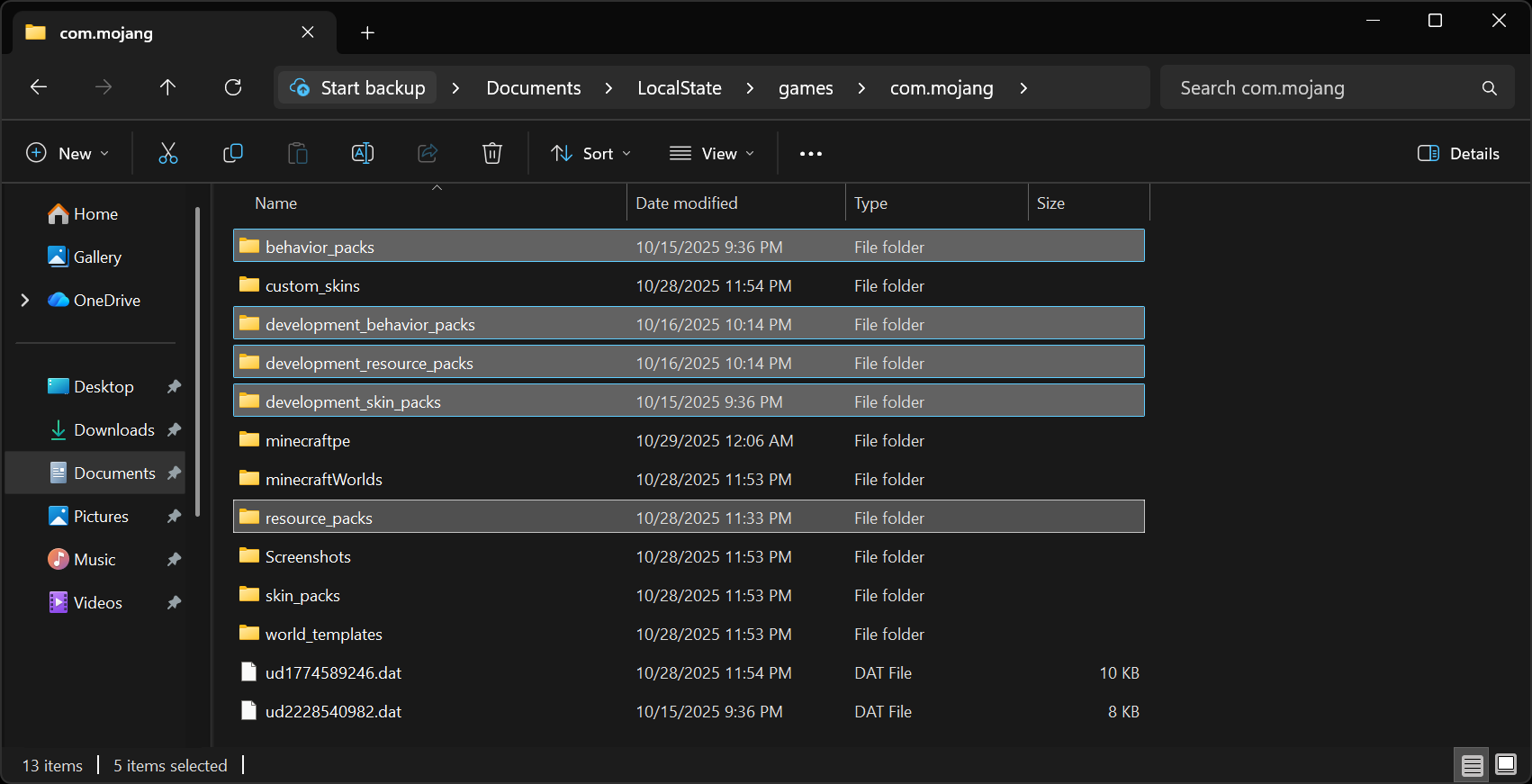
- After that, navigate to the
%AppData%\Minecraft Bedrock\Users\<random numbers>\games\com.mojangdirectory, and copy the rest of files from your backed-upcom.mojangfolder into this location. This is where your worlds and your settings are now stored.
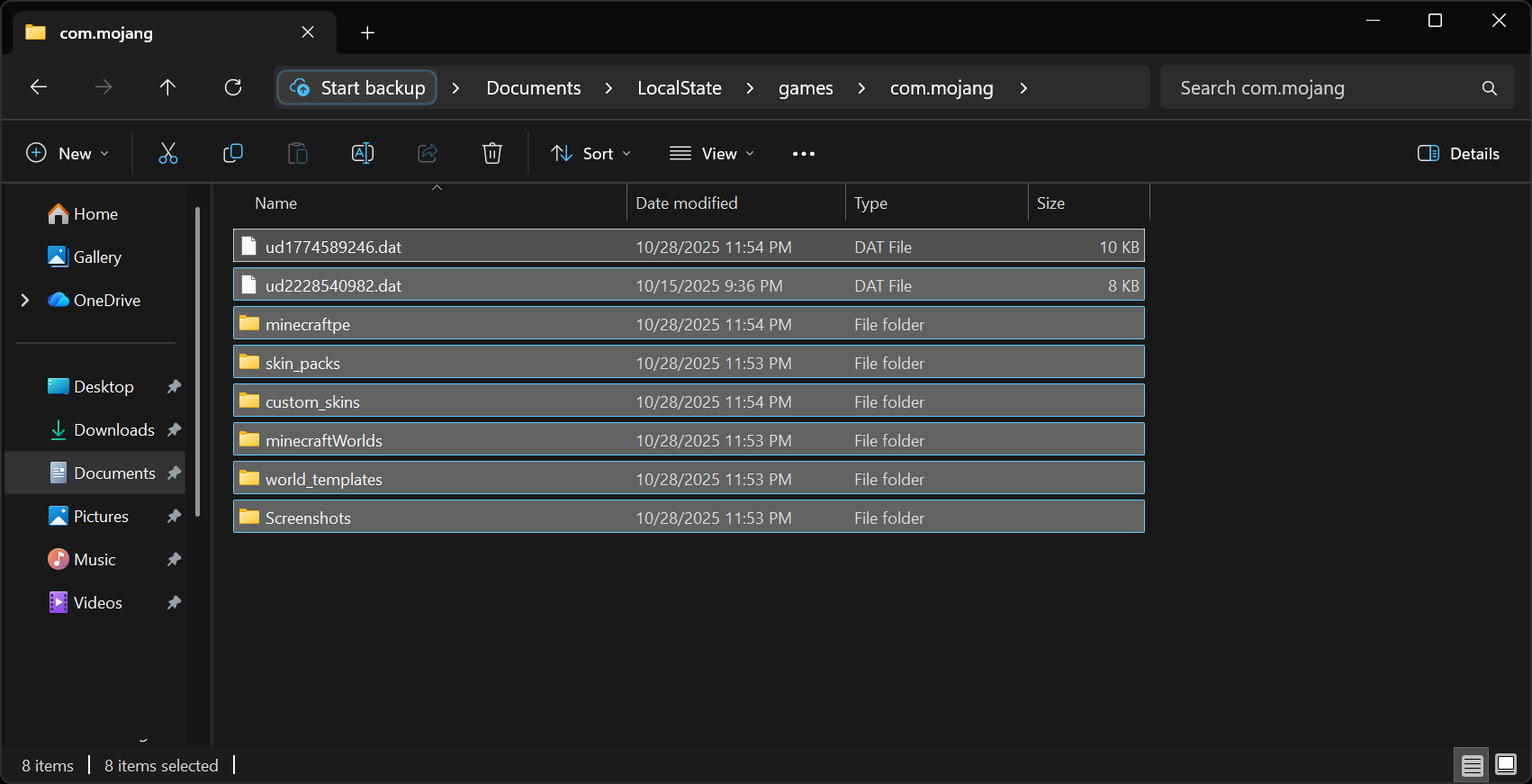
Enjoy the GDK Update!
Once you've restored your data, you can launch Minecraft Bedrock GDK Update and enjoy the latest features and performance improvements. Make sure to check for any updates regularly to keep your game up to date.
Additional Information / References
Game File Location Changes
For Minecraft Bedrock:
- Internal game files for Minecraft Bedrock are now stored in either
C:\XboxGames\Minecraft for Windows\ContentorC:\XboxGames\7792D9CE-355A-493C-AFBD-768F4A77C3B0\Content, instead of the old UWP location.
For Minecraft Bedrock Preview:
- Your addons, worlds and settings files are stored in
%APPDATA%\Minecraft Bedrock Preview\instead of%APPDATA%\Minecraft Bedrock\. - Internal game files for Minecraft Bedrock Preview are now stored in either
C:\XboxGames\Minecraft Preview for Windows\ContentorC:\XboxGames\98BD2335-9B01-4E4C-BD05-CCC01614078B\Content, instead of the old UWP location.